mPower Edge Intelligence Device API
Complete REST API documentation for managing Multi-Tech Systems IoT gateway devices (mPower Edge Intelligence platform).
Overview
The mPower Device API is a comprehensive RESTful API that provides complete control and monitoring capabilities for MTS IoT gateway devices including Conduit, MultiConnect, and other mPower-enabled devices.
Key Features
- System Configuration: Device information, capabilities, and system settings
- Cellular Connectivity: Provider profiles, SIM management, connection monitoring
- Network Services: WiFi, DNS, DHCP, routing, VPN tunnels
- Security: Firewall, certificates, user authentication and authorization
- IoT Protocols: LoRa network server, SCADA protocols (BACnet, Modbus)
- Device Management: Firmware updates, diagnostics, Docker containers
- Location Services: GPS configuration and tracking
- Communication: SMS messaging, serial port configuration
Documentation Resources
📘 Complete API Guide
Comprehensive documentation with detailed explanations, authentication guide, complete endpoint reference, code examples, configuration workflows, and troubleshooting.
📋 Quick Reference
Concise command reference with all endpoints at a glance, common usage patterns, and quick copy-paste examples.
📚 Available Resources Reference
Complete documentation for all API resources including system, network, cellular, VPN, IoT protocols, communication (SMS, GPS, Serial), security, and monitoring resources with examples.
⚡ Command Endpoints Reference
Complete documentation for all command endpoints including configuration management, system commands, firmware updates, network diagnostics, SMS messaging, and LoRa operations with examples.
📑 Documentation Index
Master index with overview of all documentation, how-to guides, tool integration, and quick start instructions.
🔧 OpenAPI/Swagger Specification
- YAML Format - For Swagger UI and code generators
- JSON Format - For programmatic access
📦 Postman Collection
Ready-to-import Postman collection with pre-configured requests for all major endpoints.
📐 Detailed Schema Documentation
Comprehensive field-by-field documentation extracted from mtsDeviceAPI source code (json/strict/*.schema.json):
Core Documentation (from source)
- API Schemas Reference - Core schemas (system, users, cellular, WiFi, DNS, DHCP, routes, firewall, NAT, GPS, serial, alert)
- SMS Schema - SMS messaging and remote commands configuration
- VPN Schemas - OpenVPN, IPsec, and GRE tunnel configuration
- Network Services Schemas - SNMP, SMTP, SNTP, and Network Interfaces
Extended Documentation (from source) 🆕
- Device Management Schemas - Auto reboot, remote management, remote access, custom apps, Docker, user roles, password rules
- Connectivity Schemas - Bluetooth, BLE, IP passthrough, IP pipes, DDNS, WAN manager, backoff timers, cell time sync
- Advanced Features Schemas - Filters, SCADA, MQTT broker, RADIUS, secure protocols, trusted IP, notifications
- Logging & Status Schemas - Event log, syslog, status, LLDP, mDNS, policy, external I/O
Additional Schemas
- LoRa Network Schema - Complete
loraNetworkconfiguration with 200+ properties - Security Schemas - Authentication, certificates, and security configuration
- NAT & Firewall Schemas - NAT rules, port forwarding, and firewall configuration
- Network Interfaces Schema - Ethernet, cellular, WiFi, and network interface configuration
- Alert Schema - Alert and notification configuration
- SNMP Schema - SNMP agent and trap configuration
📚 Implementation Guides
Production-ready guides for common use cases:
- Monitoring Best Practices - Complete monitoring strategies with polling intervals, alert thresholds, Python/Bash scripts, and Prometheus exporter examples
- WAN Failover Configuration - Complete guide to WAN failover and load balancing with FAILOVER vs LOADBALANCE modes, health check strategies, and configuration examples
- API Client Examples - Production-ready client implementations in Python, Node.js, and Bash with authentication, error handling, and common use cases
- LoRa Operations Workflow - Complete FOTA and multicast messaging workflows with step-by-step API call sequences, file upload procedures, and code examples
Quick Start
Discovering API Calls Using Browser Developer Tools
A useful technique for learning the API is to use your browser’s developer tools to observe the API calls made by the mPower web interface. This helps you discover the exact endpoints, request formats, and payload structures used by the device.
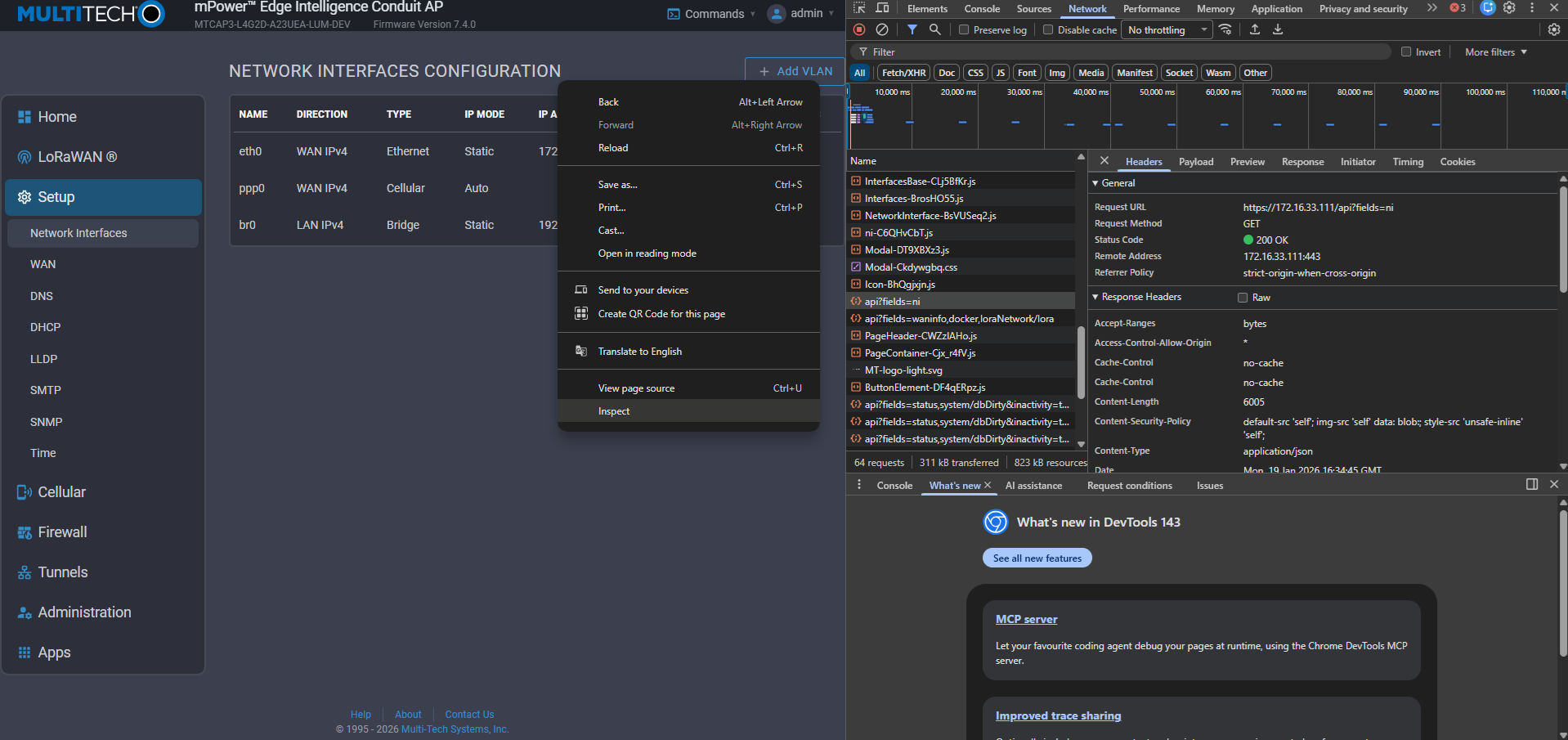
Steps to capture API calls:
- Open your browser’s Developer Tools (F12, or right-click → Inspect)
- Navigate to the Network tab
- Filter by “Fetch/XHR” to see only API requests
- Perform an action in the mPower web UI (e.g., change a setting)
- Click on the captured request to view:
- Request URL - The exact endpoint being called
- Request Method - GET, PUT, POST, or DELETE
- Request Payload - The JSON data being sent
- Response - The data returned by the device
This is especially helpful for complex configurations where the endpoint structure may include array indices (e.g., /api/ni/nis/6 for updating a specific network interface).
Using the API Directly in the Browser
Once logged into the mPower web interface, you can make API calls directly from the browser address bar. This is useful for quick testing and exploration.
GET requests - Simply enter the API URL:
https://192.168.2.1/api?fields=system
https://192.168.2.1/api?fields=ni
https://192.168.2.1/api/ni/nis/6
PUT requests - Add method and data parameters to the URL:
https://192.168.2.1/api/loraNetwork/?method=PUT&data={"lora":{"enabled":false}}
Note: When using the browser address bar, special characters in JSON must be URL-encoded (e.g., { becomes %7B, " becomes %22). Most browsers will handle this automatically when you paste the URL.
Commissioning (First-Time Setup)
For new devices, check and complete commissioning before login:
# Step 1: Check commissioning status (no authentication required)
curl -X GET http://192.168.2.1/api/commissioning
# Response: {"status": "success", "result": {"commissioned": true/false}}

# Step 2: If not commissioned, set the admin password
curl -X POST http://192.168.2.1/api/commissioning \
  -H "Content-Type: application/json" \
  -d '{"password": "SecurePassword123!"}'
Authentication
The API uses session-based authentication with cookies:
# Login
curl -X POST http://192.168.2.1/api/login \
  -H "Content-Type: application/json" \
  -d '{"username": "admin", "password": "admin"}' \
  -c cookies.txt

# Use session cookie for subsequent requests
curl -X GET "http://192.168.2.1/api?fields=system" -b cookies.txt

# Logout
curl -X POST http://192.168.2.1/api/logout -b cookies.txt
Basic API Usage
Query Resources
# Get system information
curl -X GET "http://192.168.2.1/api?fields=system" -b cookies.txt

# Get multiple resources
curl -X GET "http://192.168.2.1/api?fields=system,cellular,users" -b cookies.txt

# Get nested fields
curl -X GET "http://192.168.2.1/api?fields=system/capabilities" -b cookies.txt
Update Configuration
# Update system settings
curl -X PUT http://192.168.2.1/api/system \
  -H "Content-Type: application/json" \
  -d '{"deviceName": "MyDevice"}' \
  -b cookies.txt

# Save configuration
curl -X POST http://192.168.2.1/api/command/save -b cookies.txt
Execute Commands
# Restart device
curl -X POST http://192.168.2.1/api/command/restart -b cookies.txt

# Ping test
curl -X POST http://192.168.2.1/api/command/ping \
  -H "Content-Type: application/json" \
  -d '{"host": "8.8.8.8", "count": 4}' \
  -b cookies.txt
API Structure
Resource Endpoints
| HTTP Method | Pattern | Description |
|---|---|---|
| GET | /api?fields=<resource> |
Retrieve resource data |
| PUT | /api/<resource> |
Update entire resource |
| POST | /api/<resource> |
Create new resource item |
| DELETE | /api/<resource>/<id> |
Delete resource item |
Available Resources
Core System
system- Device information and capabilitiesstatus- System status notificationsusers- User account managementcustomRoles- Custom role definitionsautoReboot- 🆕 Automatic reboot schedulerbrand- 🆕 White-label branding configurationcustomAppsConfig- 🆕 Custom application settingsresetButton- 🆕 Physical reset button configurationbootloader- 🆕 Bootloader security settings
Network
cellular- Cellular connectivitywifi- WiFi access point and clientdns- DNS server configurationdhcp- DHCP server configurationroutes- Static routesfirewall- Firewall rulesnat- NAT configurationwanmngr- 🆕 WAN failover and load balancingwaninfo- 🆕 Real-time WAN interface statusipPassthrough- 🆕 IP passthrough/bridge modeipPipes- 🆕 IP pipe tunnelslldp- 🆕 Link Layer Discovery Protocolmdns- 🆕 Multicast DNS (Bonjour)ddns- 🆕 Dynamic DNS configuration
Cellular
backOffTimers- 🆕 Carrier-specific retry timerscellTimeSync- 🆕 Cellular time synchronization
VPN
ovpnTunnels- OpenVPN tunnelsipsecTunnels- IPsec tunnelsgreTunnels- GRE tunnels
IoT Protocols
loraNetwork- LoRa network serverlora- LoRa gateway managementscada- SCADA protocol configurationmqttBroker- MQTT broker
Device Management
docker- Docker container managementgps- GPS configuration and dataserial- Serial port configurationsms- SMS messagingremoteMgmt- 🆕 Multi-Tech cloud management
Security
certificate- Device certificatescacertificates- CA certificatessecureProtocols- TLS/SSL protocolsremoteAccess- 🆕 HTTP/HTTPS/SSH/SNMP securityradius- 🆕 RADIUS authentication
Notifications
smtp- 🆕 SMTP email configurationsntp- 🆕 NTP time synchronizationnotificationEventGroup- 🆕 Event notification groups
Monitoring (Stats)
stats/dashboard- 🆕 Comprehensive system overviewstats/radio- 🆕 Cellular radio statisticsstats/memory- 🆕 Memory usagestats/cpu- 🆕 CPU usagestats/iface- 🆕 Network interface statisticsstats/lora- 🆕 LoRa gateway statistics- …and 28+ more stats categories
Command Endpoints
Commands are executed via POST to /api/command/<command>:
Configuration Commands
save- Save configuration to persistent storagerevert- Revert to last saved configurationrestart- Restart device
Firmware Commands
firmware_upgrade- Upgrade device firmwareradio/firmware_upgrade- Upgrade cellular radio firmware
Network Commands
ping- Execute ping testreset_modem- Reset cellular modemreset_wifi- Reset WiFi module
Interactive Documentation
View in Swagger UI
- Go to Swagger Editor
- Click File → Import File
- Select the api-documentation.yaml file
- Explore and test the API interactively
Import to Postman
- Open Postman
- Click Import → Upload Files
- Select MTS-Device-API.postman_collection.json
- Update the
baseUrlvariable to your device IP - Start making requests!
Generate Client Code
Use OpenAPI Generator to create client libraries in various languages:
# Install OpenAPI Generator
npm install @openapitools/openapi-generator-cli -g

# Generate Python client
openapi-generator-cli generate \
  -i mpower-api-docs/api-documentation.yaml \
  -g python \
  -o ./python-client

# Generate JavaScript/TypeScript client
openapi-generator-cli generate \
  -i mpower-api-docs/api-documentation.yaml \
  -g typescript-axios \
  -o ./typescript-client

# Generate Java client
openapi-generator-cli generate \
  -i mpower-api-docs/api-documentation.yaml \
  -g java \
  -o ./java-client
Role-Based Access Control
The API implements role-based access control with three built-in roles:
| Role | Description | Access Level |
|---|---|---|
| Admin | Full system access | Read/Write/Execute all |
| User (Engineer) | Configuration access | Read/Write most, limited security |
| Guest (Monitor) | Read-only access | Read status/monitoring only |
Response Format
All API responses follow a consistent JSON format:
Success Response
{
  "success": true,
  "result": {
    // Response data varies by endpoint
  }
}
Error Response
{
  "success": false,
  "error": "Error message description",
  "code": 404
}
Configuration Workflow
The device uses a two-stage configuration model:
- Runtime Configuration - Changes made via PUT requests update the runtime configuration
- Persistent Configuration - Use
POST /api/command/saveto persist changes
Typical Workflow
# 1. Login
curl -X POST http://192.168.2.1/api/login \
  -d '{"username":"admin","password":"admin"}' -c cookies.txt

# 2. Get current configuration
curl -X GET "http://192.168.2.1/api?fields=cellular" -b cookies.txt

# 3. Update configuration
curl -X PUT http://192.168.2.1/api/cellular \
  -d '{"enabled": true}' -b cookies.txt

# 4. Save configuration
curl -X POST http://192.168.2.1/api/command/save -b cookies.txt

# 5. Logout
curl -X POST http://192.168.2.1/api/logout -b cookies.txt
Examples
Cellular Configuration
# Get cellular configuration
curl -X GET "http://192.168.2.1/api?fields=cellular" -b cookies.txt

# Enable cellular with provider profile
curl -X PUT http://192.168.2.1/api/cellular \
  -H "Content-Type: application/json" \
  -b cookies.txt \
  -d '{
    "enabled": true,
    "providerProfiles": [{
      "_id": "550e8400-e29b-41d4-a716-446655440000",
      "profileName": "My Carrier",
      "cellularMode": "4g-preferred",
      "dataCtx": {
        "apnString": "internet",
        "contextIpMode": "AUTO",
        "authentication": {
          "type": "NONE",
          "username": "",
          "password": ""
        }
      }
    }]
  }'

# Save configuration
curl -X POST http://192.168.2.1/api/command/save -b cookies.txt
User Management
# List all users
curl -X GET "http://192.168.2.1/api?fields=users" -b cookies.txt

# Create new user
curl -X POST http://192.168.2.1/api/users \
  -H "Content-Type: application/json" \
  -b cookies.txt \
  -d '{
    "name": "engineer1",
    "password": "password123",
    "permission": "user",
    "firstName": "John",
    "lastName": "Doe",
    "email": "john.doe@example.com"
  }'

# Save changes
curl -X POST http://192.168.2.1/api/command/save -b cookies.txt
Network Interface Configuration (BR0 Bridge)
Network interfaces are stored in an array and must be updated by index. Use GET /api?fields=ni to retrieve all interfaces and identify the index of the interface you want to modify.
# Get all network interfaces
curl -X GET "http://192.168.2.1/api?fields=ni" -b cookies.txt

# Get a single network interface by index (e.g., br0 at index 6)
curl -X GET "http://192.168.2.1/api/ni/nis/6" -b cookies.txt

# Update BR0 bridge interface (index 6 in this example)
# Use browser developer tools to find the correct index for your device
curl -X PUT http://192.168.2.1/api/ni/nis/6 \
  -H "Content-Type: application/json" \
  -b cookies.txt \
  -d '{
    "MAC": "",
    "available": true,
    "bridge": "br0",
    "ipv4": {
      "dns1": "8.8.8.8",
      "dns2": "",
      "gateway": "",
      "ip": "192.168.100.1",
      "mask": "255.255.255.0",
      "mode": "STATIC",
      "wanMasquerade": true
    },
    "ipv6": {
      "delegatedPrefixLength": 64,
      "dns1": "",
      "dns2": "",
      "enabled": false,
      "fixedIp": [],
      "gateway": "",
      "ip": [],
      "linkLocalIp": [],
      "mode": "DELEGATED",
      "prefixDelegationEnabled": false
    },
    "name": "br0",
    "nitype": "BRIDGE",
    "type": "LAN",
    "vlanId": -1
  }'

# Save configuration
curl -X POST http://192.168.2.1/api/command/save -b cookies.txt
Note: The interface index varies by device model and configuration. Common interfaces and typical indices:
eth0- Index 0 (WAN Ethernet)eth1,eth2- Indices 1, 2 (LAN Ethernet ports)ppp0- Cellular PPP interfacewlan0- WiFi as WANwlan1- WiFi Access Pointbr0- Bridge interface (often index 6)
LoRa Network Server
# Get LoRa configuration
curl -X GET "http://192.168.2.1/api?fields=loraNetwork" -b cookies.txt

# Update single field - network server name
curl -X PUT http://192.168.2.1/api/loraNetwork \
  -H "Content-Type: application/json" \
  -b cookies.txt \
  -d '{
    "network": {
      "name": "My Gateway"
    }
  }'

# Update top-level field - backup interval
curl -X PUT http://192.168.2.1/api/loraNetwork \
  -H "Content-Type: application/json" \
  -b cookies.txt \
  -d '{"backupInterval": 7200}'

# Update nested field - MQTT enabled
curl -X PUT http://192.168.2.1/api/loraNetwork \
  -H "Content-Type: application/json" \
  -b cookies.txt \
  -d '{
    "mqtt": {
      "enabled": true
    }
  }'

# Update packet forwarder channel plan
curl -X PUT http://192.168.2.1/api/loraNetwork \
  -H "Content-Type: application/json" \
  -b cookies.txt \
  -d '{
    "packetForwarder": {
      "channelPlan": "US915"
    }
  }'

# Restart LoRa service to apply changes
curl -X POST http://192.168.2.1/api/lora/restart -b cookies.txt
System Monitoring
# Get comprehensive dashboard view (most useful!)
curl -X GET "http://192.168.2.1/api?fields=stats/dashboard" -b cookies.txt

# Get cellular radio statistics
curl -X GET "http://192.168.2.1/api?fields=stats/radio" -b cookies.txt

# Get memory usage
curl -X GET "http://192.168.2.1/api?fields=stats/memory" -b cookies.txt

# Get interface statistics
curl -X GET "http://192.168.2.1/api?fields=stats/iface_ppp0" -b cookies.txt

# Monitor without session timeout (for continuous monitoring)
curl -X GET "http://192.168.2.1/api?fields=stats/radio&inactivity=true" -b cookies.txt

# Get LoRa gateway statistics
curl -X GET "http://192.168.2.1/api/lora/gateways" -b cookies.txt

# Get LoRa devices
curl -X GET "http://192.168.2.1/api/lora/devices" -b cookies.txt
WAN Failover Configuration
# Get WAN manager configuration
curl -X GET "http://192.168.2.1/api?fields=wanmngr" -b cookies.txt

# Configure WAN failover
curl -X PUT http://192.168.2.1/api/wanmngr \
  -H "Content-Type: application/json" \
  -b cookies.txt \
  -d '{
    "mode": "FAILOVER",
    "wans": [
      {
        "interface": "eth0",
        "priority": 1,
        "monitor": {
          "mode": "ACTIVE",
          "checkInterval": 60,
          "active": {
            "type": "ICMP",
            "hostname": "8.8.8.8",
            "icmpCount": 5
          }
        }
      },
      {
        "interface": "ppp0",
        "priority": 2,
        "monitor": {
          "mode": "ACTIVE",
          "checkInterval": 60,
          "active": {
            "type": "ICMP",
            "hostname": "8.8.8.8",
            "icmpCount": 10
          }
        }
      }
    ]
  }'

# Get real-time WAN status
curl -X GET "http://192.168.2.1/api?fields=waninfo" -b cookies.txt

# Save configuration
curl -X POST http://192.168.2.1/api/command/save -b cookies.txt
Troubleshooting
Common Issues
401 Unauthorized
- Solution: Login first with
/api/login - Check: Session cookie is being sent
409 Conflict
- Solution: Device may be in commissioning mode
- Check:
/api/policyendpoint
Changes not persisting
- Solution: Call
/api/command/saveafter changes - Check:
system/dbDirtystatus
Device unavailable
- Solution: Wait for device to complete startup
- Check:
/api/policyfor device state
Support
For technical support and additional documentation:
- Visit: Multi-Tech Support Portal
- Email: support@multitech.com
- GitHub: MultiTechSystems
Version Information
- API Version: Based on mPower Edge Intelligence platform
- Documentation Version: 1.2.0
- Last Updated: February 10, 2026
- OpenAPI Version: 3.0.3
Related Documentation: